Merge Dig Simulator Controls
How to move, aim at cube walls, open Shop, and merge on every device.
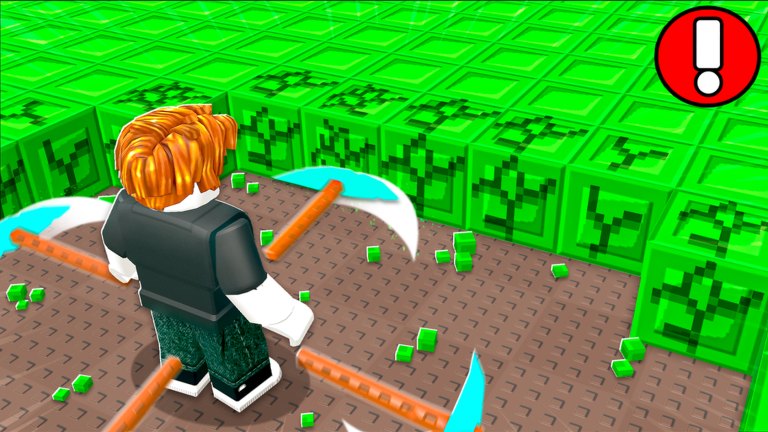
Merge Dig Simulator is listed as supported on PC, mobile, tablet, and console. The loop does not change. The fingers do. Most “the merge button is missing” reports are camera or HUD issues, not a removed feature.
This page is the input map. Gameplay still lives in getting started, mining, and merging.
Shared HUD targets
Whatever the device, you need to find:
- Move — reach the green cube wall.
- Camera — look slightly down so orbiting pickaxes hit.
- Shop — Codes, Potions, pickaxe copies.
- Merge input — drag or confirm two identical tools.
If Shop is missing, you may still be on the spawn fade. Wait until a pickaxe is visible. If merge is missing, you may not own a true duplicate — that is inventory, not controls.
PC
Use standard Roblox movement (WASD, space to jump if enabled). Mouse-drag the camera so the cube wall fills the view. Click Shop in the HUD, not a random cave prop. For merge, click-drag one pickaxe onto its twin if the UI is drag-based; otherwise click the prompt. Keyboard chat is not a code field — redeem stays in Shop.
Esc opens Roblox’s own menu, which will not contain Merge Dig Simulator codes. Leave that menu before you assume the Codes tab vanished.
Mobile and tablet
Thumb stick on the left, jump (if present) on the right, camera on a drag anywhere else. Shop is a HUD button that thumbs like to cover. Rotate the phone, then look at the corners. After opening Shop, swipe tabs to Codes; the first tab is rarely Codes.
Drag-to-merge on a phone is fiddly. Zoom out slightly so both tools are visible, then drag slowly. If the keyboard opened because you clipped the code field, close it before trying a merge. Tablets have more room — use it to keep the cube wall on screen while Shop is open so you do not lose the wall.
Console
Enable the on-screen cursor if the experience uses PC-style GUI. Stick movement still walks you to the wall. Do not bind codes to a macro; type or paste in the Codes field with the on-screen keyboard, then close it so Redeem is clickable. Console parties still count toward the eight-player cap.
Mining range and camera height
Official action art is over-the-shoulder, close to the cubes, pickaxes in frame. If you pull the camera to the sky, tools miss and you will swear mining is broken. If you stand inside the wall, you may clip and stop dealing hits — step back half a body. How to mine shows what a good wall looks like.
Accessibility notes
There is no documented colorblind mode in the public listing. The ore is bright green, which is readable, but HUD contrast can be busy. Increase device brightness before you hunt for a grey Shop icon. We will not recommend third-party overlays; those overlap with script risk.
If an input does nothing
- Confirm you are in Merge & Dig! by Merge Diggers, not a clone.
- Rejoin to refresh the HUD.
- Check updates for a shop move.
- Try another device type if you have one — the listing’s multi-platform claim is the fallback test.
Controls are solved when you can walk to cubes, open Shop, redeem, and merge without opening Roblox’s website. Everything after that is progression, which belongs on the tier list and the session checklist.
Frequently Asked Questions
Quick answers to the most common questions.
Does Merge Dig Simulator work on phones?
Yes. The Roblox listing supports mobile and tablet. Shop tabs may require a swipe to reach Codes.
Why can’t I merge on mobile?
Usually no true duplicate, or the drag missed. Zoom out, confirm the names match, then drag again. See how to merge.
Where do I type codes on console?
In the in-game Shop → Codes field, not in party chat. Full path on how to redeem.
Is there a unique control scheme per pickaxe?
No. Higher-tier tools still use the same movement and camera. They just hit harder or orbit more.